Rail Inspection
Inspections can occur upon arrival, during loading, and at departure. Inspections are also conducted for cars that are classified as bad order, and bad order forms are filled accordingly.
Admin Workflow
-
Assign Railroads to a Facility
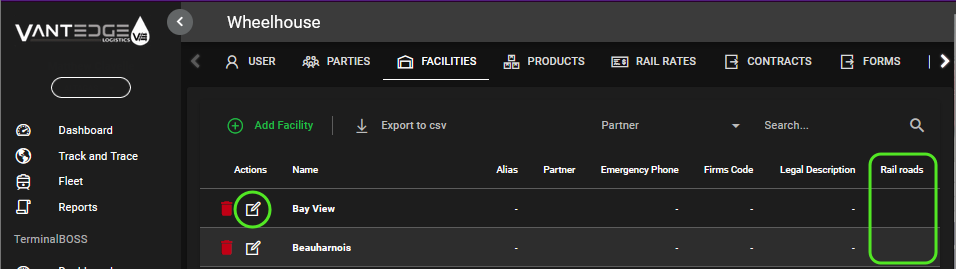
- Navigate to Configuration > Facilities.
-
Search for the facility name and select it to view and edit its details.
-
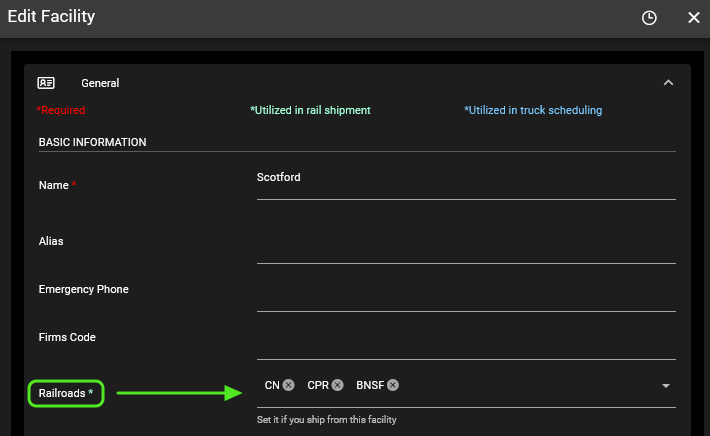
Ensure the facility is linked to the appropriate railroads that can accept shipments from that facility.
-
Set Up Inspection Forms
-
Navigate to Configuration > Forms.
-
Click on Add Form to create new inspection forms.
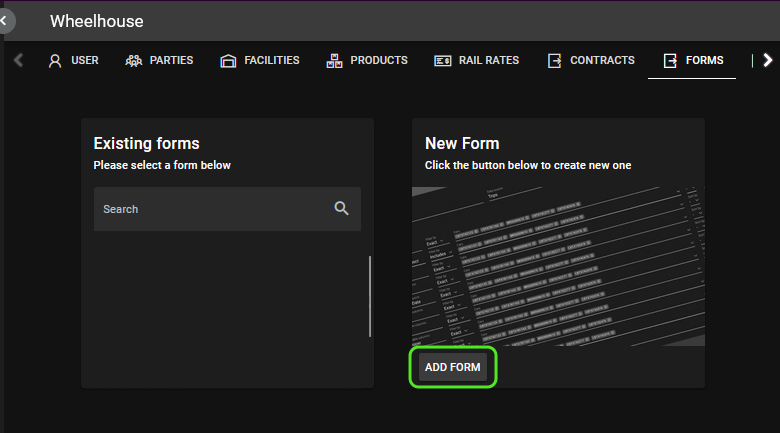
- Create multiple forms as needed. Each form corresponds to a specific inspection stage (e.g., arrival, loading, departure, bad order).
-
-
Creating Different Inspection Forms
Arrival Inspection Form
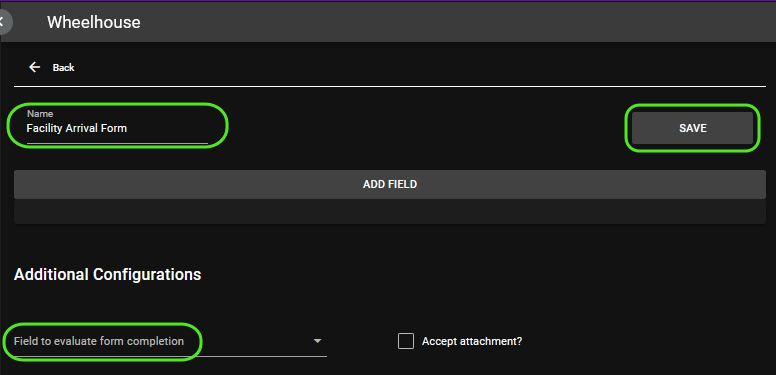
- Name the form "(Facility) Arrival Form".
-
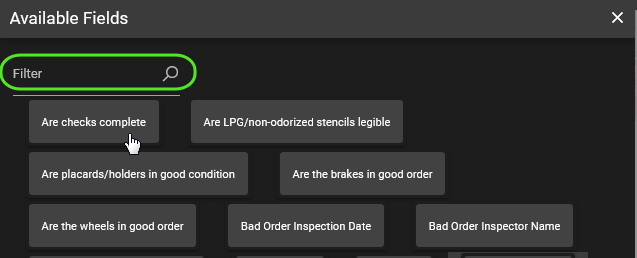
Add fields such as:
✔ Car capacity
✔ Inspection date
✔ Are the brakes in good order
-
Fields can be reordered based on preference.
-
Select the corresponding field to determine the "Field to evaluate form completion". For example: "Is preloading inspection complete?"
-
Preview the form to ensure all fields are correctly set.
-
Set default values within the form preview.
-
Enable attachments to allow for additional documents or photos.
-
Save the form.
Loading Inspection Form
-
Following a similar format as the "Arrival Inspection" name the form "(Facility) Loading Inspection".
-
Add fields such as:
-
Is the car loaded?
✔ Is the product odorized?
✔ Is the loading inspection passed?
✔ Inspector name, date, and signature.
-
Set the field to evaluate for completion: "Is the loading inspection passed?"
-
Save the form.
Departure Inspection Form
-
Following a similar format as the "Loading Inspection Form" name the form \"(Facility) Departure Inspection\".
-
Add fields similar to the loading inspection.
-
Set the field to evaluate for completion: \"Is the post-loading inspection passed?\"
-
Save the form.
Bad Order Form
-
Name the form \"Bad Order Inspection\".
-
Add fields to document issues
-
Set the field to evaluate for completion: "Is bad order inspection complete?"
-
Save the form.
-
Create Facility Inspection Plan
-
Navigate to Configuration > Facility > Inspection Plan
- Define the workflow and requirements for each inspection stage.
-
Add Forms to Inspection Plan
-
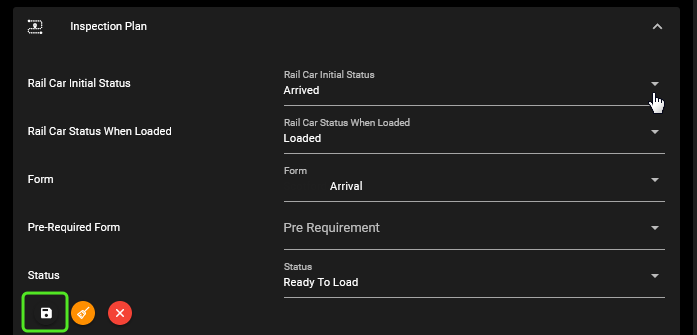
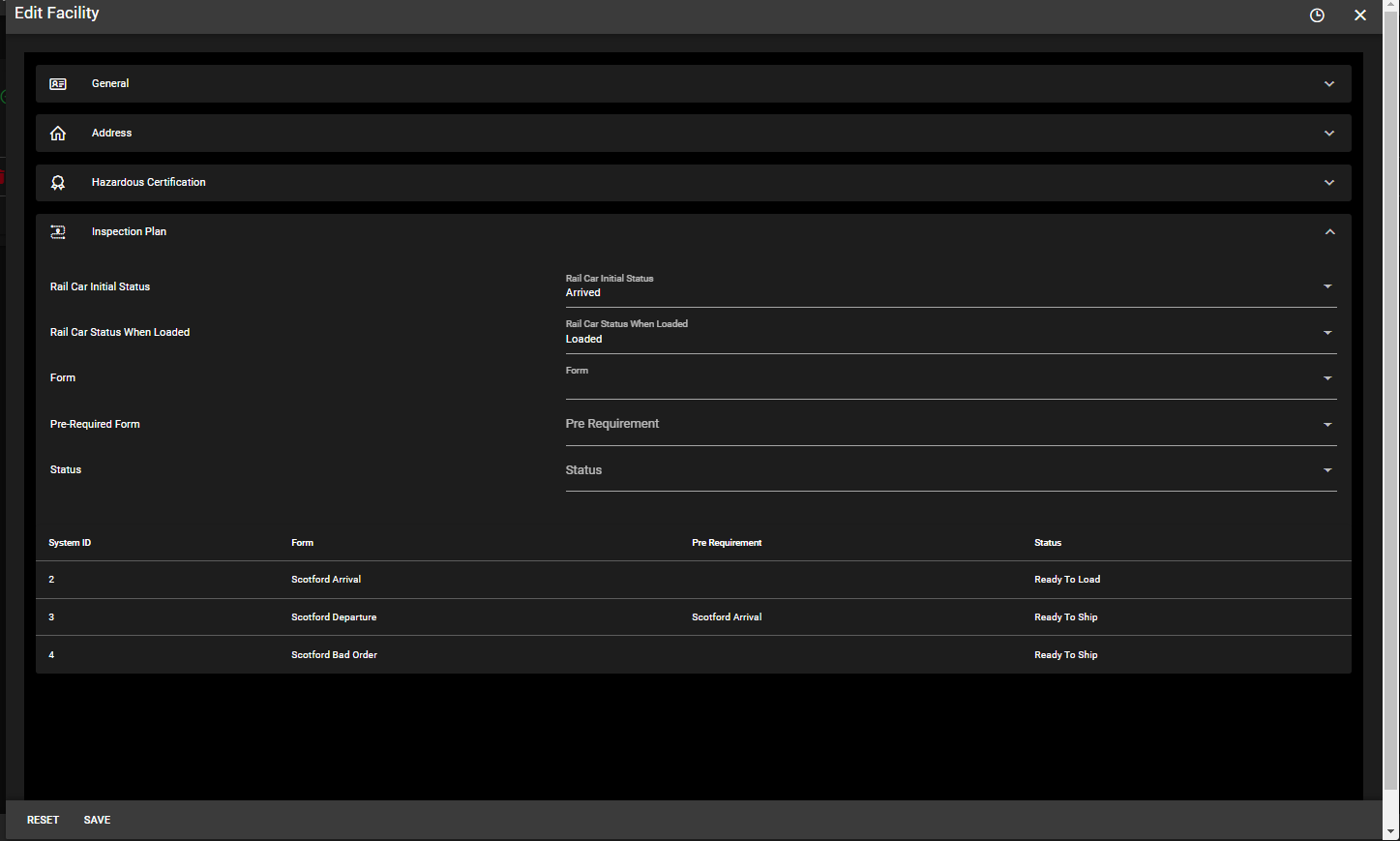
Set Rail Car Initial status as Arrived
-
Set Status When Loaded as "Loaded"
-
Arrival Form: No pre-requirements, status is Under Inspection upon form completion.
-
-
Loading Form: Pre-requirement is the Arrival inspection, status is "Ready to Load
-
Post-Loading/Departure Form: Pre-requirement is the Loading Inspection, status is "Ready to Ship"
-
Bad Order Forms: No pre-requirements, status should be \"Ready to Ship\" on completion.
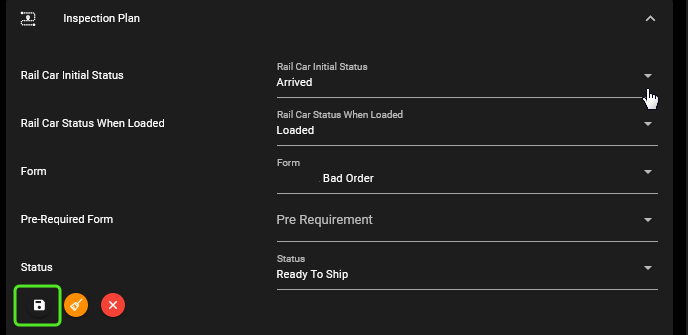
Sample Inspection Plan
-
Operator Workflow
Start Inspection
-
Choose Your Facility
- Navigate to the Inspection module.
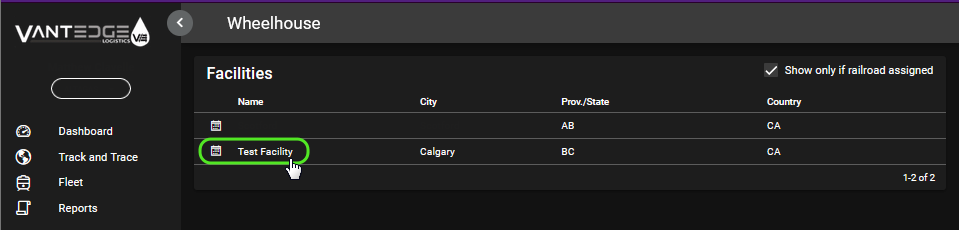
- Select the facility where the inspection will take place using the calendar icon.
-
Search for Car or Add Tank Car
-
If the car is already in the system, use the search function to locate it.
-
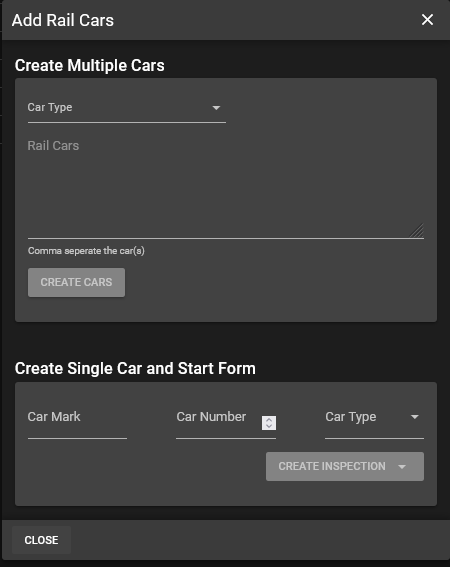
To add a new car, select "Add Rail Cars".

-
Enter the car details manually and create a form for a single car immediately or write/paste a list of car marks to add multiple cars at once.
-
Perform Inspection
-
Fill Out Initial Form

-
Complete the appropriate form for the inspection stage (eg., arrival or bad order) by clicking "Create".
-
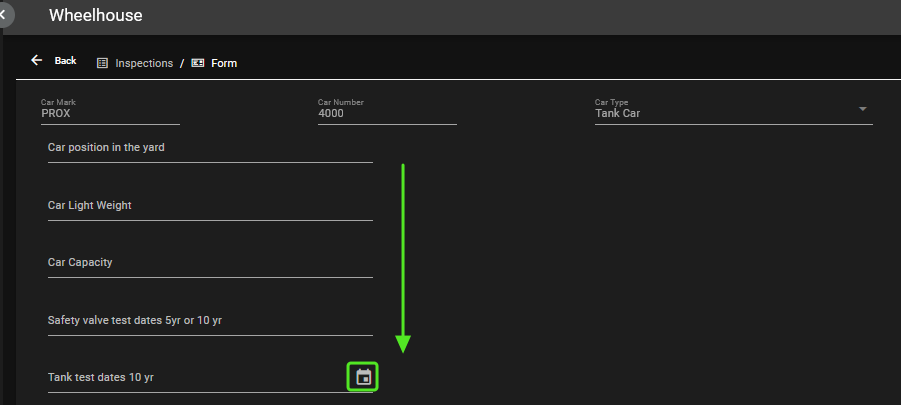
Fill out all fields on the form:
✔ Inspector name
✔ Date
✔ Car Capacity
-
Mark the form as passed
-
"Save" once all fields are filled out. Status should change to "Passed".
-
Note* Attach relevant documents or photos (e.g., pictures of bad order).
-
-
Complete Loading Inspection
- Complete second form -- loading inspection if there is one. Same steps as arrival inspection form. Once those are completed, begin loading the railcars.
-
Load Tank Car
-
Navigate back to inspection table view
-
Ensure the car status is \"Ready to load\".
-
Click "Load car"
-
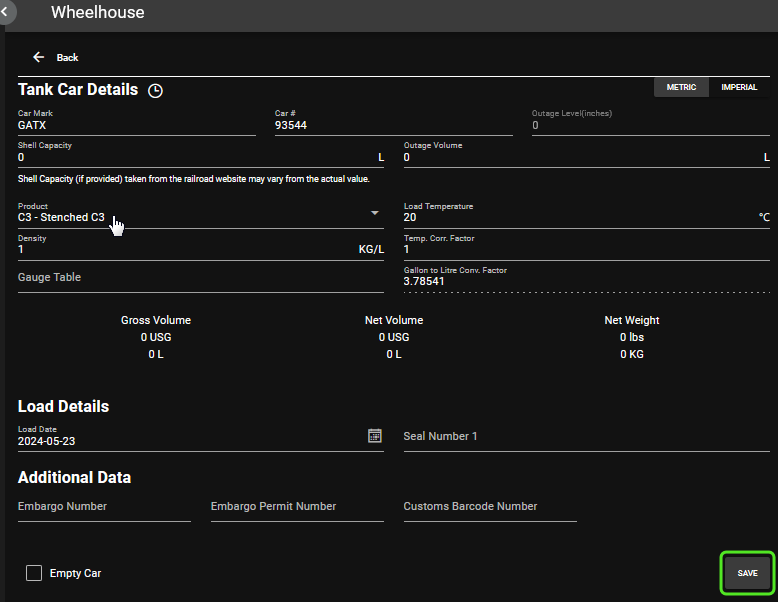
Fill out the necessary details:
✔ Shell capacity
✔ Outage volume
✔ Product type
-
Complete the loading form by entering the required fields and select "Save".
-
Departure Form
-
Complete Departure Inspection
-
Open the departure form by selecting "Create" under the "Departure Column".
-
Fill out the form with the required information:
✔ Inspector name
✔ Date
✔ Confirmation of loading completion
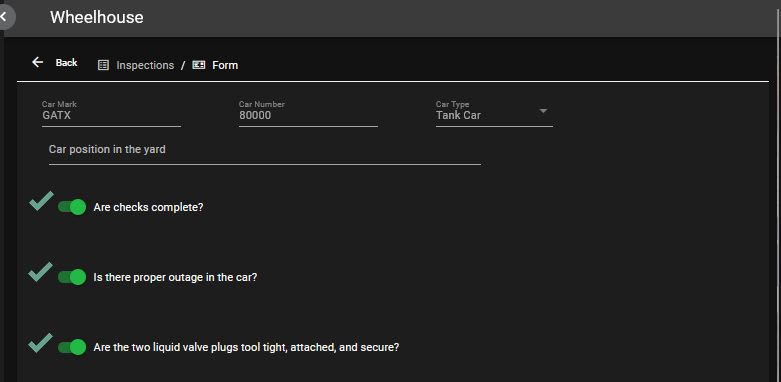
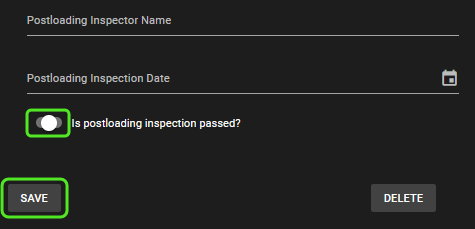
- Mark the form as passed.
-
"Save" once all fields are filled out. Status should change to "Passed".
-
Note* Attach relevant documents or photos (e.g., pictures of bad order).
-
Review and Confirm
-
Complete Inspection for Shipment
-
Cars marked \"Under Inspection\" cannot be loaded until the inspection is passed.
-
Once all forms are completed and the car passes the departure inspection, the status will change to \"Ready To Ship\".
-
Once a car is "Ready To Ship", the billing team will have the car available to be sent to the railroad.
-
Historical Section
-
A Reference Tool
-
Shipped cars appear in the historical section.
-
Historical records can be viewed but not edited post-shipment.
-
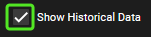
Use the search function to look up shipped cars by selecting the historical box.
-
You can see the Shipment (Status) column shows the shipment status with the railroad.

-