Routes
Permissions
The relevant list of permissions for the Routes object:
-
Access to V3 Sync Data Route Menu
-
Can change route records.
-
Can delete route records.
Navigation
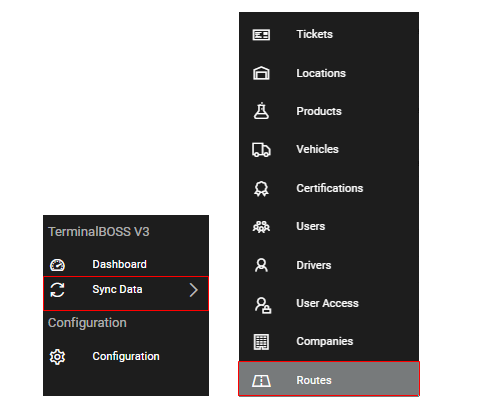
The Route object can be accessed by permitted users from within the TerminalBOSS V3 menu and Sync Data submenu on the left side of the screen:
Landing page
The landing page is a table overview of all route records that have been created:

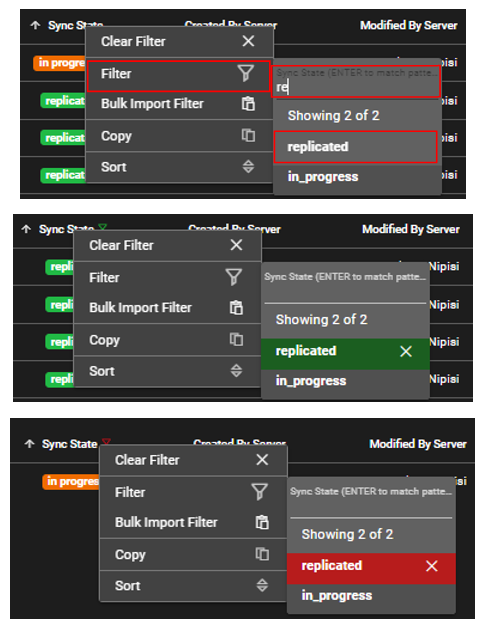
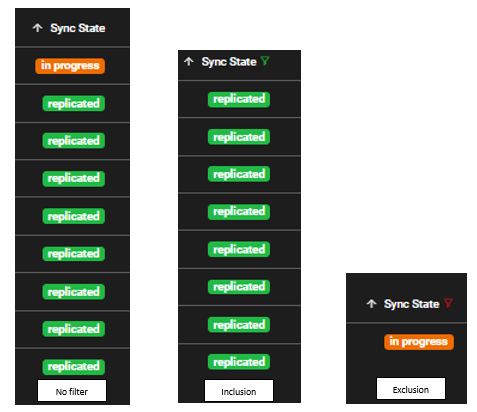
On this page, users can filter on any of the columns by right clicking on the particular column and searching for the key word or selecting one of the choices. A green selection (one mouse click) is an inclusion and a red selection (two mouse clicks) is an exclusion. The applied filters can easily be cleared from the same dropdown menu.
Filtered column appears like so:
On this page, users can sort the column by clicking on the column name or by right clicking and selecting sort:
Create a new record
Permitted users can create new records under the Routes object by selecting "ADD ROUTE". This action opens up a blank form that can be filled out.

When filling the form, always start by selecting the server ie TBOSS site before filling out the remaining fields:
Mandatory vs Optional Fields
Within the Route form, all fields are mandatory. The best practice is to fill out all the necessary fields according to your organization's standards.
Mandatory:
-
Site
-
Name
-
Code
-
Description
Edit an existing record
Permitted users can edit existing records by using the "edit" button. This action opens up the route form. Only the server field cannot be edited after a record has been saved.
Save a new or existing record
For new and existing records, after changes are made to the fields, use the save button to save changes. These changes will be replicated in TBOSS accordingly.

Deleting a record
Permitted users can delete existing records for the user access objects. This can happen from two places, the landing page and the form page. A record can only be deleted if it hasn't been used in any transaction or ticket!
The table view:

The form view:

Other actions
-
Export to CSV: Located in the table view. Users can export records within the Routes object as a CSV.

-
History logs: Located in the table view. Users can view the changes to records within the Routes object.

-
Activate Sync: Located in the table view. Users can initiate sync with TBOSS for updated Route records.

-
Clear form: Located within the form view. This will clear any changes that were made since the last save.
