Managing Scheduled Shipments
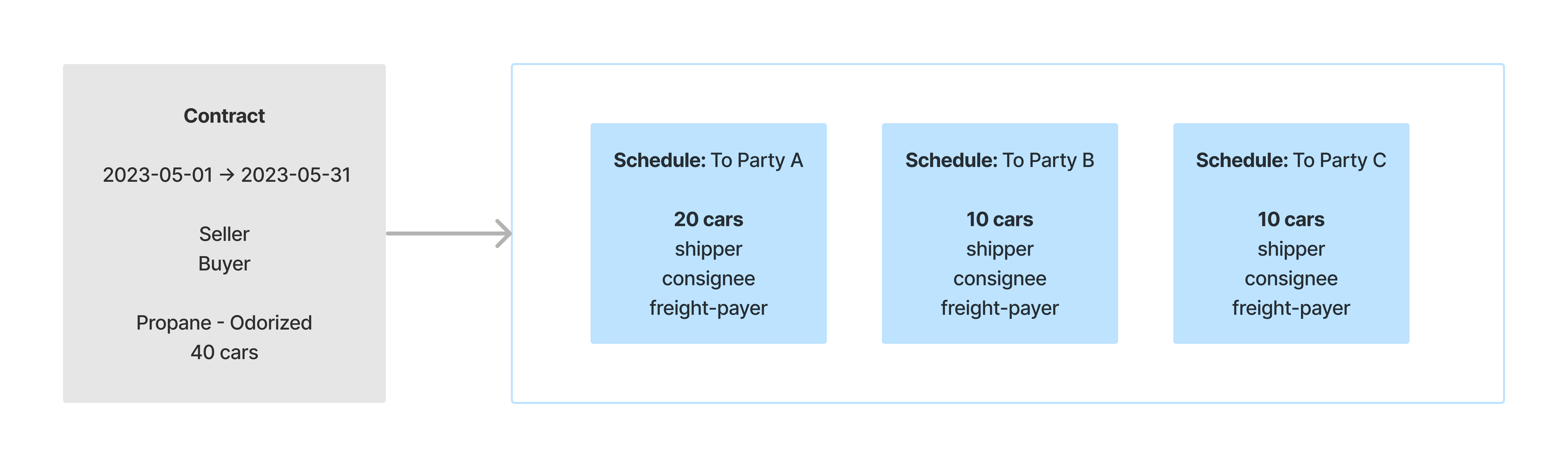 To make shipments from Wheelhouse, one needs a contract
with a shipping schedule containing all the necessary
information for executing a shipment, or several shipments.
In addition, RailCars must be available for the shipment. A RailCar is available when it is not currently assigned to any shipment. It is possible to check for available RailCars.
Shipping through Wheelhouse
To ship through Wheelhouse:
-
Navigate to the 'Shipments' section using the sidemenu.
-
Select the facility.
-
Switch to the 'Contract Schedules' tab.
-
Find your schedule by name, and click 'CREATE NEW SHIPMENT'.
- This action will navigate to the rail-shipment-form. Notice that the rail-shipment-form is populated with values from the shipping schedule.
-
Add any additional information for the shipment.
-
Select car(s) from the 'available cars' listing on the bottom right.
- This action will move the car(s) into the 'Shipment' listing on the left.
- NOTE: Cars with a red capacity dot will be prevented from being loaded onto a shipment as they are overloaded.
-
Once there are cars in the shipment, click the 'ship' button on the top-right.
- This action kicks off the shipment process, DO NOT click 'ship' until ready.
Checking Available Rail Cars
To check for available cars:
-
In the 'Shipments' section, switch to the 'cars' tab.
-
Use the 'shipment-status' column and filter (right click on column header) to status 'not-loaded'.
- This actions updates the table to show only empty cars.
-
Select a rail car, to launch the tank car dialog.
-
Update the product to match the contract product.
- The product property of the rail car must match the contract product/commodity to appear as an available car in the shipment-form.
NOTE: To create shipments it is necessary to have a shipping schedule first. If there are no shipping schedules, learn how to manage shipping schedules.