Track and Trace
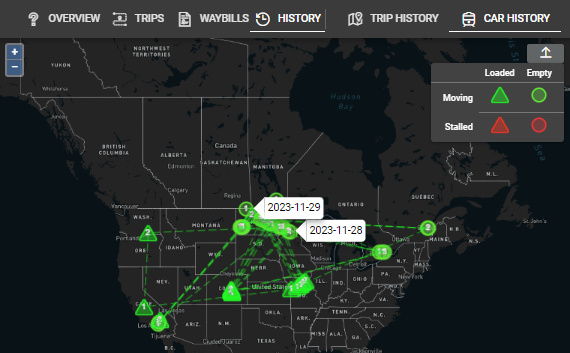
In Wheelhouse, the Track and Trace module serves as a central hub for rail logistics, allowing users to track, monitor, and manage rail shipments effectively. One will also be able to utilize the map's geographic tracking feature which visually displays the distribution and status of railcars by their movement and load characteristics.
Training Video
Overview
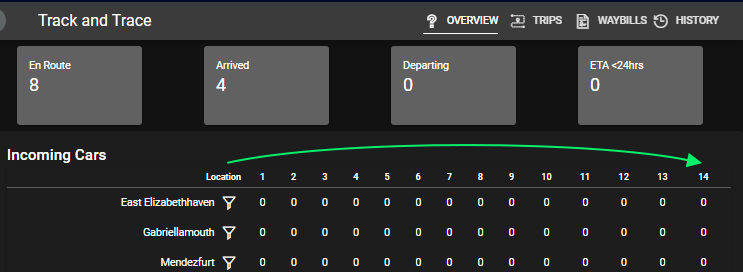
The main dashboard provides a quick snapshot of the railcars' status, including those en route, arrived, departing, and those with an ETA within 24 hours. This allows for at-a-glance monitoring of railcar traffic and shipment flows into specific facilities over the next 14 days.
Trips
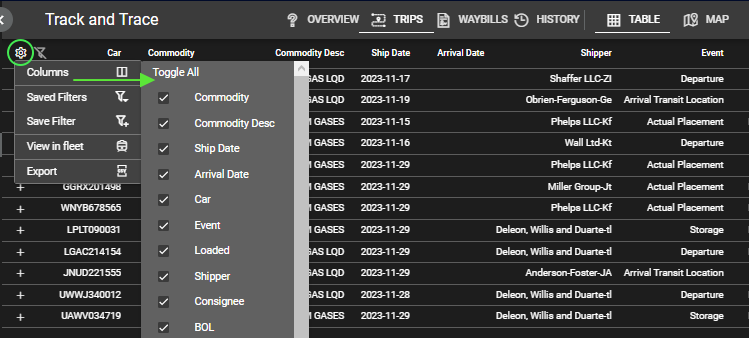
The Trips page shows a more granular view of your current shipments. One can build this page to display the fields they wish, such as 'Ship Date' and 'ETA' via the gear in the top left.
Here you will be able to toggle the columns you wish to see.
*Note: If your 'Trips' page contains all of the selectable columns, you will need to use the slider along the bottom.
Hovering over column titles will display a small arrow for quick sorting, although not all columns are sortable. Additionally, right-clicking on any filterable column title will provide you options for creating or clearing filters, importing filters, copying the coloumn or sorting in this pop-up as well.
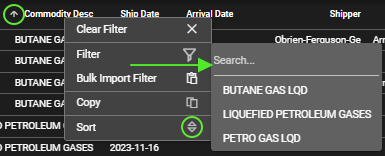
The 'Bulk Import Filter' option will allow for a more flexible filtering option.
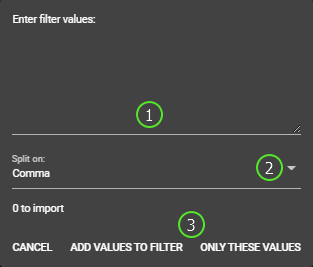
- Enter the values you wish to filter such as car marks or commodities.
- Specify how the values are separated by either a comma, a space or new line.
- Determine whether the values you added in step on are going to be added to an existing filter or be an entirely new filter.
Waybills
One will find their waybill data on the 'Waybills' page. Here your information will be displayed granularly, similar to the 'Trips' page, populated by the shipping documents associated with each railcar, including the issue date, type, and any amendments or corrections made.
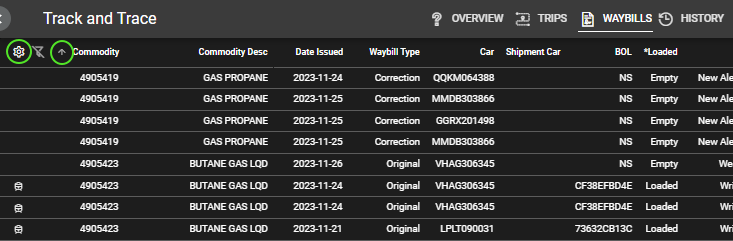
One can build this page to display the fields they wish as well, such as 'Ship Date' and 'ETA' via the gear in the top left similar to the 'Trips' page above.
Here you will be able to toggle the columns you wish to see. If your 'Waybills' page contains all of the selectable columns, you will need to use the slider along the bottom.
History
The 'History' page will allow a user to search for data on specific cars they wish to investigate. It will include a chronological record of all events and statuses that a particular rail shipment has undergone from the time of booking until its latest point in transit or delivery
Trip History
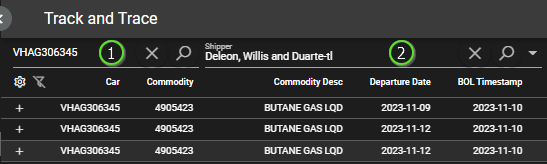
The 'Trip History' page shows specific cars shipped from a single shipper or railcar and the detials of those specific shipments.
*Note: you do not need to fill in both search fields.
- Enter the car mark whose data you wish to view.
- Enter or select the shipper youw ish to vieew shipments from.
Car History
On the 'Car Hitory' page, once can see specific car movements by searching specific cars and viewing all recorded movements and events reveived by the rail roads.
Begin by:
- Entering the mark of a car you want to see detailed movements for and select 'Enter'.
- Selecting from previously searched cars and pressing 'Enter'.

Once the search is complete, the page will now be populated with data from the CLM transmissions provided by the railroads. You can filter data here as well to see specific events or commodities. There is also a map on the right showing the historical movements of the car.