Tickets
Permissions
The relevant list of permissions for the Tickets object:
-
Access to V3 Sync Data Tickets Menu.
-
Can View Ticket.
Navigation
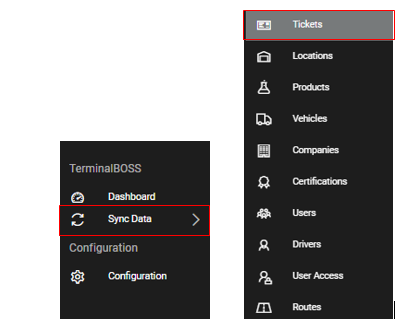
The Tickets object can be accessed by permitted users from within the TerminalBOSS V3 menu and Sync Data submenu on the left side of the screen:
Landing page
The landing page is a table overview of all ticket records that have been created:

On this page, users can filter on any of the columns by right clicking on the particular column and searching for the key word or selecting one of the choices. A green selection (one mouse click) is an inclusion and a red selection (two mouse clicks) is an exclusion. The applied filters can easily be cleared from the same dropdown menu.
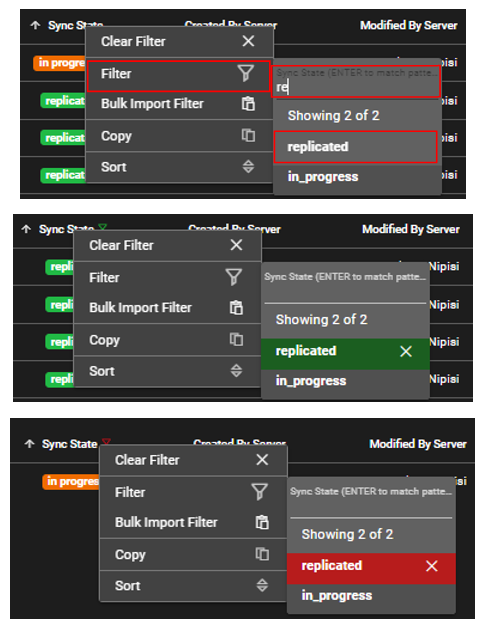
Filtered column appear like so:
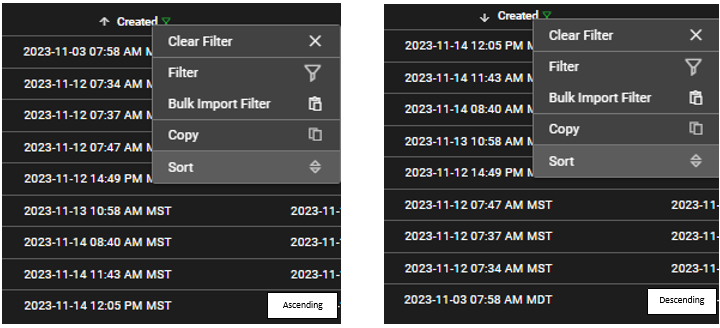
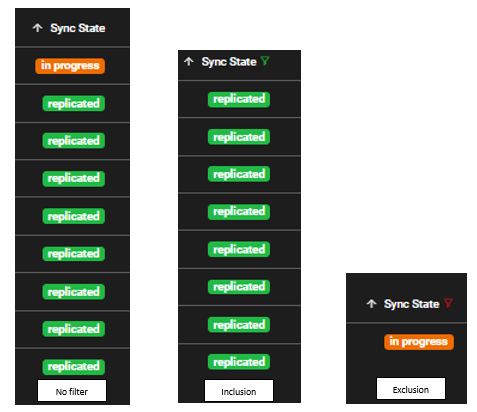 On this page, users can sort the column by clicking on the column
name or by right clicking and selecting sort:
Create a new record
Tickets are always during the driver workflow from TBOSS.
Edit an existing record
From the landing page, users can use the "edit button" to open a particular ticket. However, users cannot edit a ticket in Wheelhouse, this must be done from TBOSS. Opening a ticket form allows users to view details about the ticket.

Save a new or existing record
Users are not permitted to make changes to ticket records in wheelhouse, therefore the "save" action is not permitted.
Deleting a record
Tickets cannot be deleted from Wheelhouse.
Other actions
-
Export to CSV: Located in the table view. Users can export records within the Tickets object as a CSV.

-
History logs: Located in the table view. Users can view the changes to records within the Tickets object. There are two history logs within the ticket object, History Logs and Object Logs. Clicking on the button gives the user a choice between both.

-
Activate Sync: Located in the table view. Users can initiate sync with TBOSS for updated Ticket records.

-
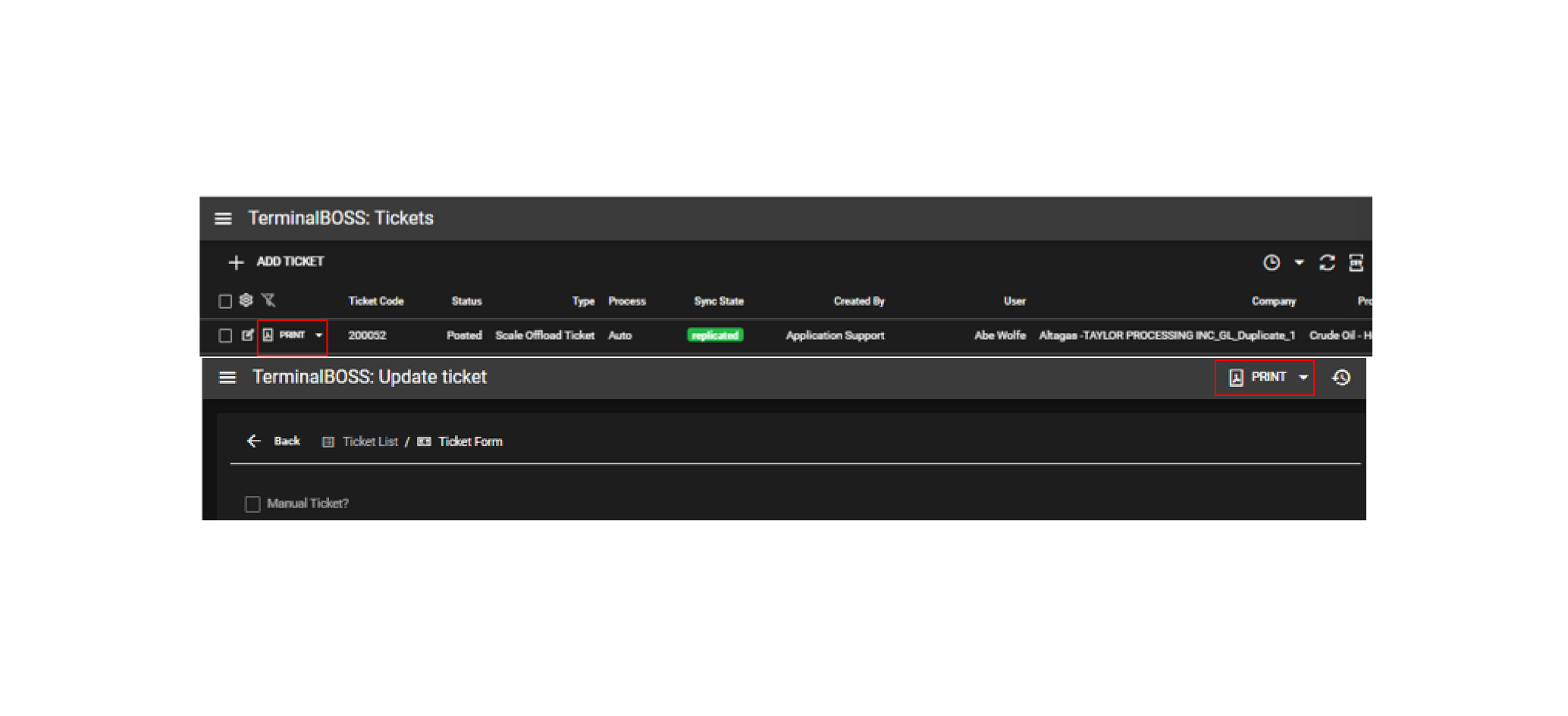
Print Ticket or BOL: Located within the table and form view. Users can genetate a PDF copy of their ticket (or BOL).