Riser Management
The Riser Management module is designed to streamline the oversight and maintenance of riser systems within your infrastructure. Use this module to add, edit, and manage all riser-related data effectively.
Adding or Editing a Riser
On the 'Riser Management' page, select the 'Add Riser' button to begin adding a riser to your facility.
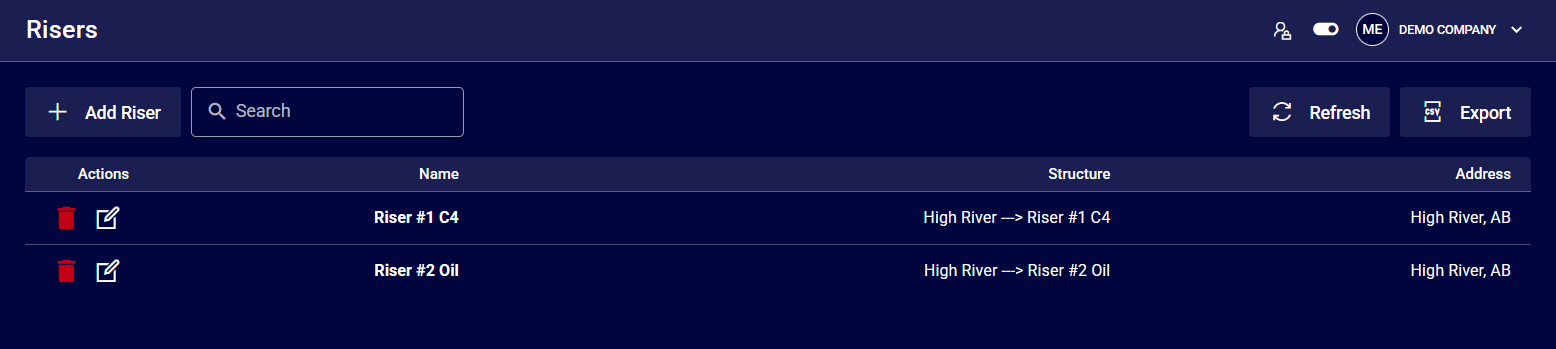
Once selected, a form will pop-up asking for some basic information and an address.
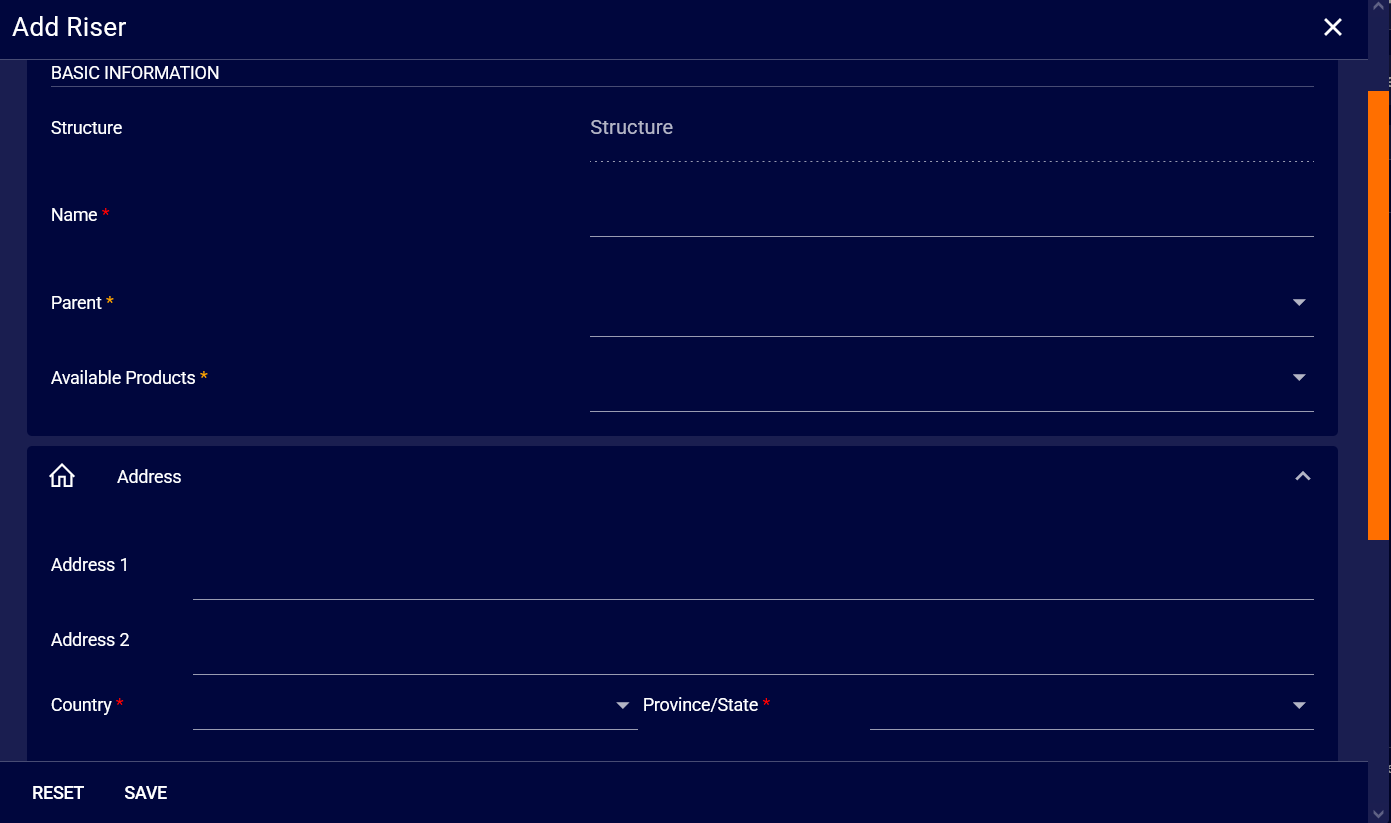
1. Basic Information
- Structure: This field is populated once you select the 'parent' or facility the riser is associated with.
- Name: Enter the designated name for the riser, typically related to the products that are loaded/unloaded.
- Parent: Select the facility the riser is associated with.
2. Address
- Address 1 & 2: The street address where the riser is installed.
- Country: The country of installation.
- Province/State: Applicable province or state.
- City: Where the riser is located.
- Postal/Zip: The postal or zip code for the area.
Once you are finished, select 'Save'.
Booking Form Requirements
To change the required details for dispatchers or drivers to fill in when booking their load, please refer to the 'Booking' dropdown section below.
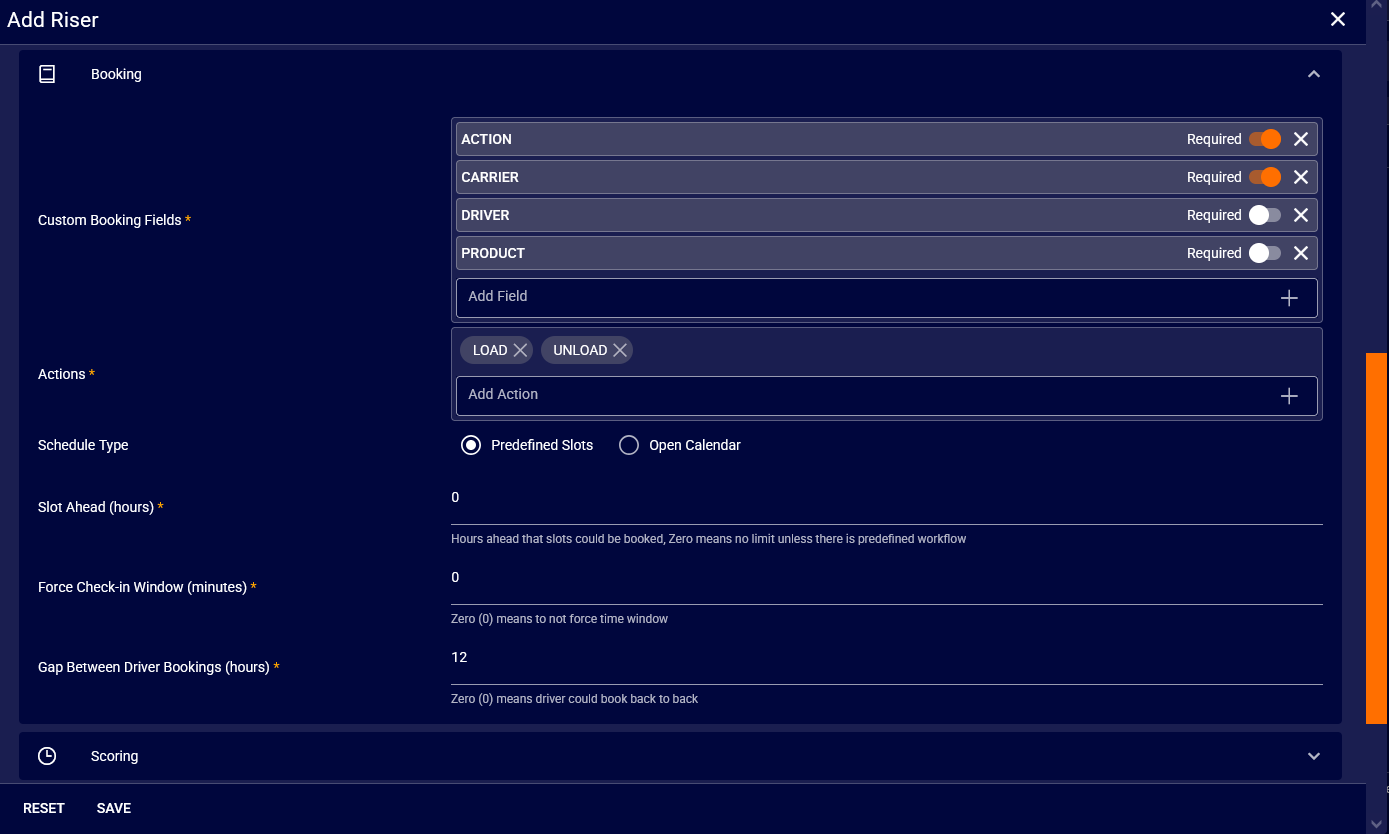
There are two fields here that are associated with the booking form, 'Available Actions' and 'Booking Required Fields'.
- Available Actions: Related to a riser having load or unload use cases.
- Booking Fields Required: This dropdown allows a site administrator to select which fields they deem necessary to be filled for a booking.
Once you have made your necessary changes you are able to save similar to the steps above. See the image below for a form with all required fields selected.