Parties
To add parties, click on the 'Add Party' button to open the 'Add Party' form where you will provide information about the new party.
*Note, you must have default sales and purchase parties to create the respective contracts. You also need to set up the Invitee as a party in order to add them to your contract as a 'Partner'.

In the 'General' section, input the essential details of the party:
- Name: The official name of the party or company.
- Party Types: Define the role of the party (e.g., consignee, shipper, freight payer).
- Related Company: If the party is associated with a larger or different entity, select it here.
- Locations: Assign a predefined location if applicable.
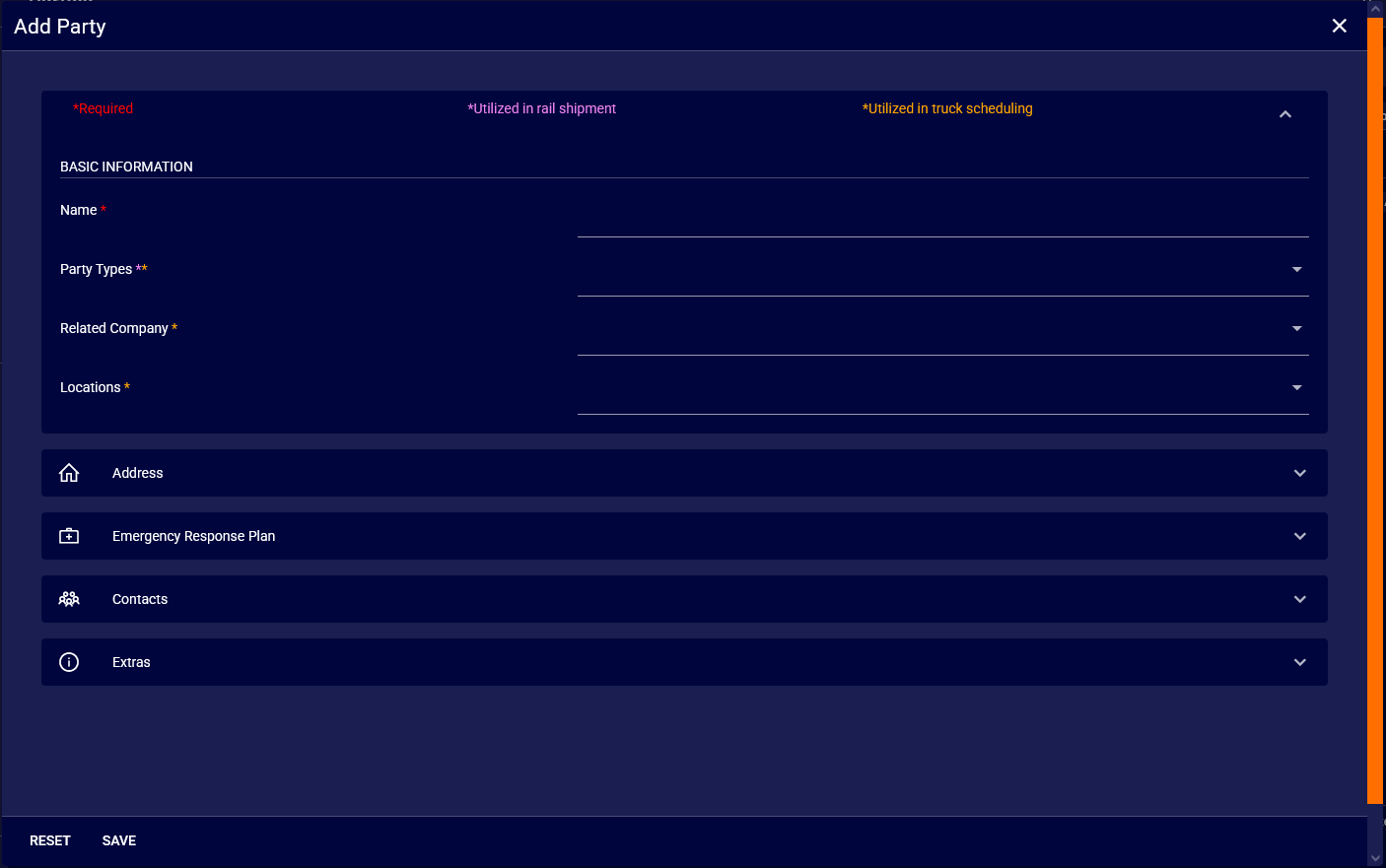
Once 'General' is filled, go to the 'Address' section to input more specific information:
- ATTN: The person or department to contact at this address. If the same, copy and paste from above.
- Name: The name associated with the address, if different from the facility name.
- Address 1 & 2: The street address for the facility.
- Country/Province/State: The country and the state or province where the facility is located (enter in short form, i.e. CA/AB).
- City/Postal/Zip: The city and postal or zip code of the facility.
If applicable, include an 'Emergency Response Plan', necessary 'Contacts', and any 'Extras' for the party by expanding the relevant sections.
Once all relevant information has been entered, click the green 'Save' button to add the party to your list. You can now utilize this party in contracts.