Rail Rates
The Rail Rates module allows users to create and configure new rail shipping rates in the system. These rates determine the cost of moving railcars between specific origins and destinations for selected products. Use this module to add, edit, and manage all rail rates related data effectively.
Navigation
Menu Bar 🡪 Configuration 🡪 Rail Rates
Adding a Rail Rate
On the “Rail Rates” page, select the Add Rail Rate button to begin adding a new rail rate.
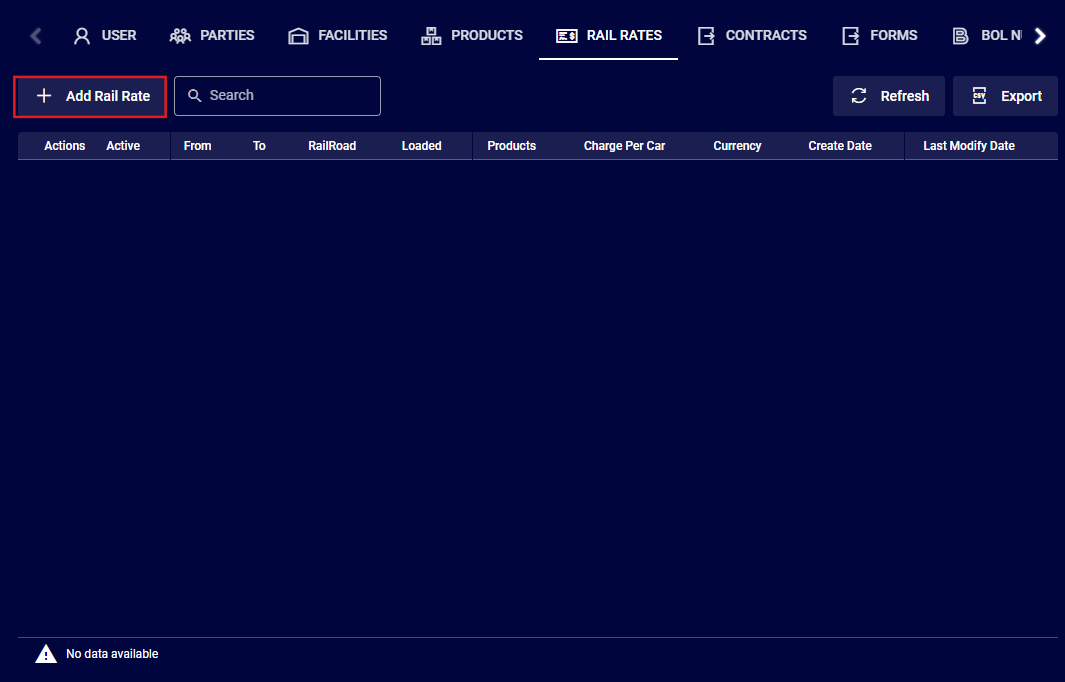
Once selected, a form will pop-up asking for information:
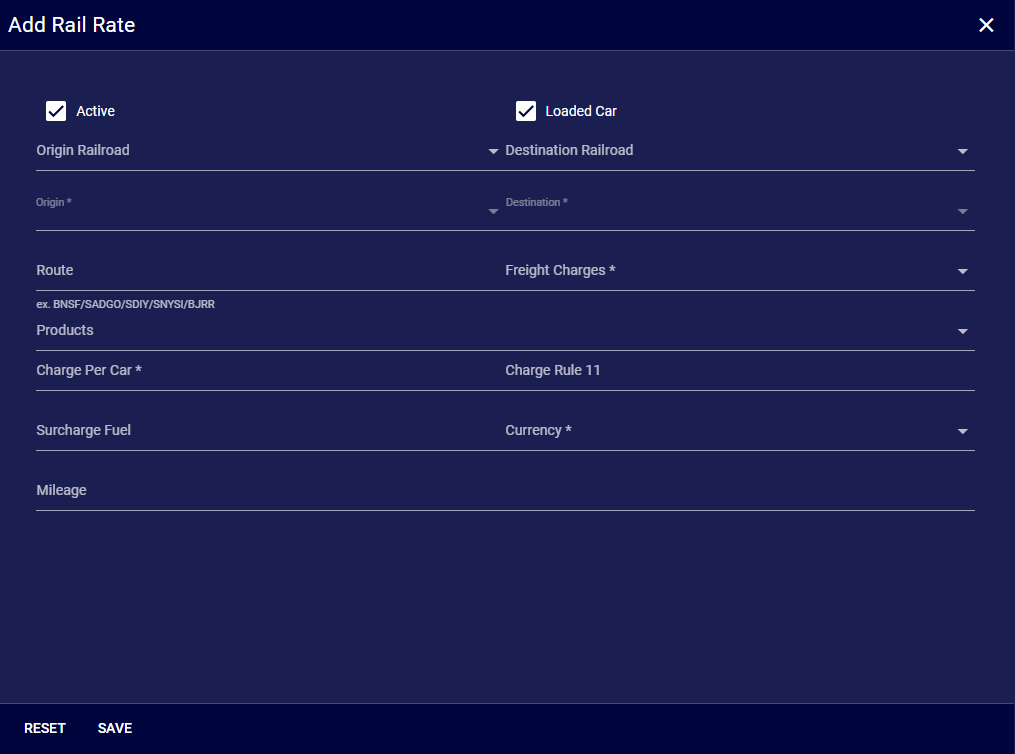
Form Fields
Header Section
-
Add Rail Rate - Title of the modal window
-
Close (X) - Button in the top-right corner to close the modal without saving changes
Status
- Active - Checkbox that enables/disables the rail rate. When checked, the rate is active and will be applied to qualifying shipments.
Route Information
-
Origin Railroad - Dropdown selector for choosing the railroad at the origin
-
Origin - Dropdown selector for specifying the starting location of the shipment
-
Destination Railroad - Dropdown selector for choosing the railroad at the destination
-
Destination - Dropdown selector for specifying the final delivery location of the shipment
-
Route - Displays the full route code (e.g., BNSF/ADOO/SDV/SNYSLBRR)
Shipment Type
- Loaded Car - Checkbox that indicates whether this rate applies to loaded cars (as opposed to empty car movements)
Rate Configuration
-
Freight Charges - Dropdown for selecting the type of freight charges applicable
-
Products - Dropdown selector for choosing which product(s) this rail rate applies to
-
Charge Per Car - Input field for entering the monetary charge per railcar
-
Charge Rule 11 - Field for entering any Rule 11 charges that might apply
-
Surcharge Fuel - Field for entering any fuel surcharges
-
Currency - Dropdown selector for specifying the currency of the rate (e.g., USD, CAD, etc.)
-
Mileage - Field for entering the distance of the route
Action Buttons
-
RESET - Button to clear all entered values and return the form to its default state
-
SAVE - Button to save the configured rail rate to the system
Usage Instructions
Configure the Rate
-
Check the "Active" box if you want the rate to be immediately available
-
Select the origin railroad from the dropdown menu
-
Select the destination railroad from the dropdown menu
-
Specify the origin location
-
Specify the destination location
-
Enter the Route, if the origin railroad and destination railroad are different values
-
Check "Loaded Car" if this rate applies to loaded cars
-
Select the appropriate freight charges
-
Select the applicable product(s)
-
Enter the charge amount per car
-
Enter Rule 11 charges if applicable
-
Enter any fuel surcharges if applicable
-
Select the appropriate currency
-
Enter the mileage for the route
Save or Cancel
-
Click "SAVE" to create the rail rate with your specifications
-
Click "RESET" to clear your entries
-
Click the "X" in the top-right corner to close without saving
Notes
-
Inactive rates remain in the system but will not be applied to shipments
-
Rule 11 charges refer to a billing arrangement where each railroad bills the customer separately for its portion of a multi-carrier move
-
Mileage helps calculate distance-based charges when applicable
Rail Rate Table View
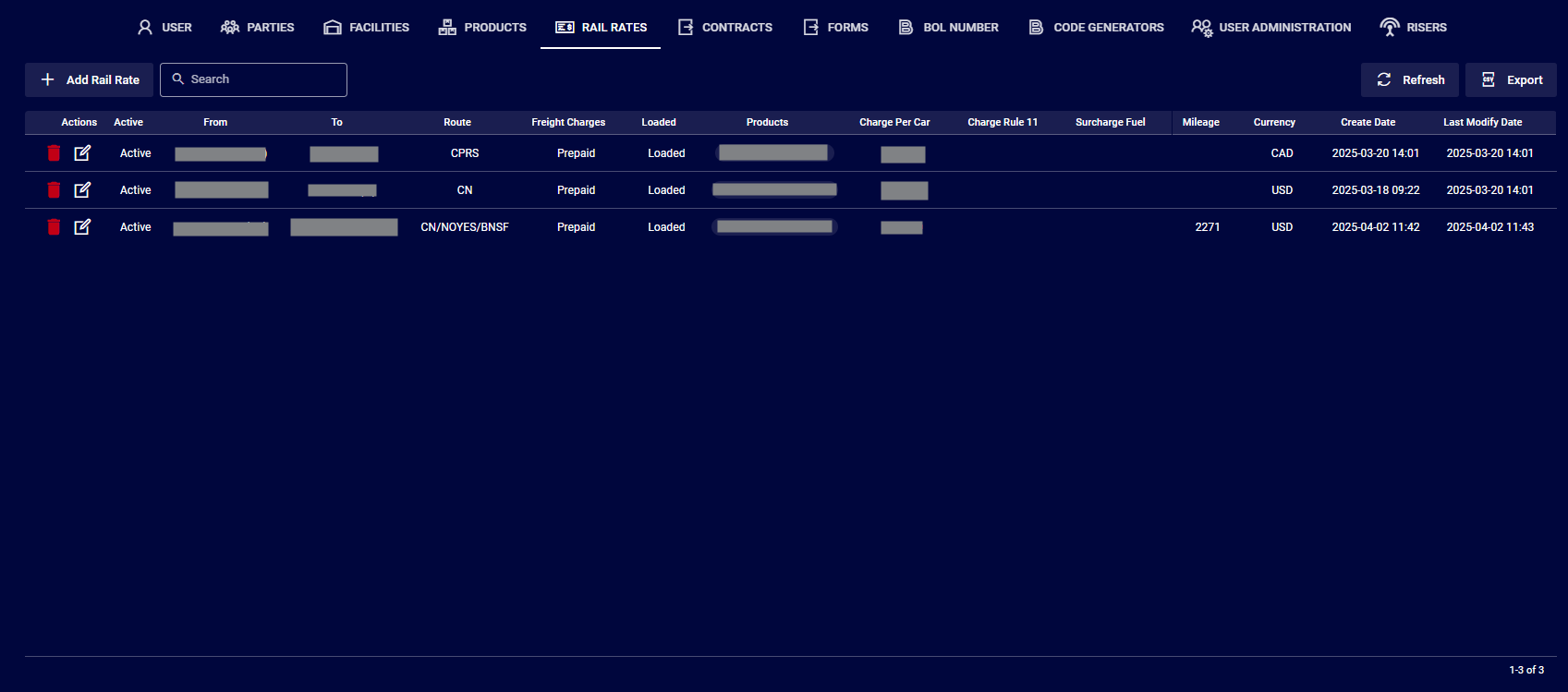
The Rail Rates Table View provides a comprehensive table of all configured rail shipping rates in the system. This interface allows users to view, search, add, edit, and delete rail rates for shipping products between different origins and destinations.
Top Bar Controls
-
Add Rail Rate - Button (with "+" icon) that opens the Add Rail Rate modal to create a new rate entry
-
Search - Text input field that allows filtering the list by any visible column value
-
Refresh - Button (with circular arrow icon) that updates the list to show the most current data
-
Export - Button that allows exporting the rail rates data to an external file format
Usage Instructions
View Rail Rates
-
All current rail rates are displayed in the table
-
The table can be scrolled horizontally if all columns don't fit on screen
-
The table can be scrolled vertically to view additional rates
Search for Specific Rates
-
Enter search terms in the Search field to filter the list
-
The search applies across all visible columns
-
Clear the search field to return to the full list view
Add a New Rail Rate
-
Click the "Add Rail Rate" button to open the creation modal
-
Complete all required fields in the modal
-
Save to add the new rate to the list
Edit an Existing Rate
-
Click the pencil icon in the Actions column for the rate you wish to modify
-
Update the desired fields in the modal that appears
-
Save your changes
Delete a Rail Rate
-
Click the trash bin icon in the Actions column for the rate you wish to remove
-
Confirm the deletion when prompted
-
The rate will be removed from the list
Export Rate Data
-
Click the "Export" button
-
File will be downloaded as CSV